AI PPT Maker
Go from prompt to presentation-ready deck — without the usual cleanup.
Free to start

Benjamin Spinola, Co-Founder · SlidesGPT
Published 24 February 2026 · Updated 15 June 2026 · 7 min read
SlidesGPT has powered over 10 million presentations for more than 5 million users since 2023 and is the #1 productivity tool in the ChatGPT store. Teams at Google, Harvard, BCG, Stanford and Amazon use it every day. This guide covers what an AI PPT maker does well, where it saves time, and how to get a deck out of one that holds up without heavy editing.
An AI PPT maker takes a topic and returns a structured presentation deck — outline first, then slides with titles, bullets and even layout. The time saved isn't mainly in typing. It's in not having to figure out the shape from scratch every time, and not having to rebuild a draft that came out wrong.
The pattern most people follow: write a focused prompt, review the outline before slides exist, then refine. That sequence is where the tool earns its place — in getting to a first draft worth working with, the generation itself takes seconds either way.
What Is an AI PPT Maker?
An AI PPT maker is software that generates presentation slides from a prompt, a set of notes, or an existing outline. It handles the parts of deck-building that are repetitive and predictable: section order, slide titles, bullet length, layout consistency. What's left for the person is the judgment — content choices, tone, audience.
The category has split into two types. Template-first tools give you a blank structure and expect you to fill it. Outline-first tools — the more capable end of the category — generate a skeleton before any slides exist, let you adjust it, then build slides from what's been agreed. The second type produces cleaner decks with less rework, because the structural decisions happen early.
For a broader look at AI-driven presentation tools, see our AI Presentation Maker guide. This page focuses specifically on the AI PPT maker — what it does, when it helps most, and how to get the most out of it.
Why Use an AI PPT Maker?
Speed is the obvious reason. Consistency is the more useful one. A deck built with an AI PPT maker tends to hold together better than one assembled slide by slide — the titles follow a thread, the sections don't repeat, and the density stays controlled throughout.
Common reasons people reach for one:
- First draft exists in minutes, not hours
- Outline is reviewable before slides lock in
- Titles say something instead of labelling a topic
- Bullets stay short without manual trimming
- Revisions are faster when scope changes
One pattern we see fairly often: a consulting team generates around 30 decks in a month, exports maybe a third, and presents fewer than ten. The rest stay as internal drafts. That's not waste — it's the tool fitting into how those teams actually work.
The biggest gain comes earlier than most people expect. Getting the outline right before slides are generated prevents the kind of rework where half the deck gets cut after feedback.
That's the part most demos don't show you.
How an AI PPT Maker Works
The best AI PPT makers follow an outline-first sequence. It maps to how good decks get built, and it's where the time savings come from.
- Write a focused prompt. Include topic, audience, goal and any required sections. The more specific the input, the less generic the output.
- Review the outline. A draft structure appears before slides are generated. This is where scope problems are cheapest to fix.
- Adjust the outline. Cut overlap, merge similar sections, reorder where needed.
- Generate slides. Titles, bullets and layout are produced from the confirmed structure.
- Refine and export. Tighten titles, shorten bullets, then export to PowerPoint, Google Slides or PDF.
The whole sequence takes less time than most people budget for slide cleanup alone.
Skipping step 2 is the most common mistake. When the outline gets reviewed, the slides feel like one story. Skip that step and editing takes longer than the build.
What You Can Create
An AI PPT maker handles most deck types. The outputs people use most: business decks (pitch decks, proposals, QBRs, strategy updates, stakeholder summaries), sales decks (solution overviews, discovery recaps, demo follow-ups), training decks (onboarding, workshops, process explainers, enablement materials), and student decks (class reports, research summaries, group projects, lecture recaps).
The result exports directly as an AI PowerPoint presentation, opens in editing tools for further refinement.
More on Microsoft PowerPoint on the respective overview page.
Information on Google Slides is available on its overview page.
Details on Keynote can be found on the corresponding overview page.
For recurring formats, presentation templates save an extra step once the outline pattern is established.
Prompts That Work With an AI PPT Maker
Most AI PPT makers improve significantly with structured input. These three prompts work well as starting points — adapt the brackets to your context.
B2B sales pitch (10–12 slides)
“Create a B2B pitch deck for [product]. Audience: [role] in [industry]. Goal: book a discovery call. Include problem, solution, differentiation, proof, pricing approach and next steps. Keep bullets to one line each.”
Class presentation (8–10 slides)
“Create a class presentation on [topic] for [course level] students. Include definitions, key concepts, two examples, one case study and a conclusion. Add three discussion questions at the end.”
Weekly team update (6–8 slides)
“Create a weekly update deck. Include goals, progress this week, blockers, decisions needed and next actions. Use action-based titles throughout.”
These work because they give the tool defined audience, clear goal, and structure.
Tips for Better Results
Results improve when the constraints are set before generation, not fixed afterwards. Six things to include in every prompt:
- Audience in one phrase. Changes depth, vocabulary and assumed context.
- Goal in one sentence. Keeps the deck from drifting into background material.
- Slide count. Strong decks land between 8 and 14. Set it early.
- Title format, explicitly. Ask for takeaway titles, not topic labels.
- Bullet limit. Three to five per slide keeps things scannable.
- One proof requirement. Examples, data, or comparisons — ask for at least one.
Work in two passes once slides are generated. First pass: fix structure, cut repetition, reorder anything that breaks the narrative. Second pass: sharpen titles, trim bullets, cut any slide that adds nothing.
Design and visual polish go last. Formatting slides before the narrative is confirmed is the fastest way to lose the time the tool saved.
How Much Does an AI PPT Maker Cost?
Most AI PPT makers follow a similar pricing structure. Free tiers cover generation and browser preview. Paid plans add exports, higher limits and more downloads — the features that matter for regular use. For individuals, the common range is $5–$15 per month billed annually. Teams pay more based on seat count.
SlidesGPT follows that pattern. There is a free AI PPT Maker plan to try first. Full details on the pricing page.
- Free — $0. Create and preview presentations in the browser. No export, no downloads. Good for testing whether the draft quality justifies upgrading.
- Pro — $7.49/month (billed annually at $89.99). Exports to PowerPoint, PDF and Google Slides. 30 AI-generated images per month, presentation mode, 10 downloads per month. This is where most regular users land.
- Pro XL — $22.50/month (billed annually at $269.99). Same as Pro with 50 downloads per month. Built for volume — agencies, consultants, internal comms teams.
Most users stay on Free longer than expected. People upgrade when exporting decks becomes a weekly thing.
The activation moment usually arrives after the second or third deadline, not the first.
How Much Does an AI PPT Maker Cost?
Start on Free, upgrade when exporting decks becomes a weekly habit.
Free Starter
$0
Free forever
- Create & view presentations
- Share presentations
Pro
$7.49
$89.99 billed annually
- Everything in Free, plus:
- Export as PowerPoint
- Export as PDF
- Export as Google Slides
- Perfect for offline use, editing, and printing
- Generate 30 images with AI every month
- Access presentation mode in your browser
- 10 downloads / month
Pro XL
$22.50
$269.99 billed annually
- Everything in Pro, plus:
- Export as PowerPoint
- Export as PDF
- Export as Google Slides
- Perfect for offline use, editing, and printing
- Generate 30 images with AI every month
- Access presentation mode in your browser
- 50 downloads / month
SlidesGPT is used by individuals from Google, Deloitte, Harvard, and more









Free AI PPT Maker (Plans and Limits)
Free plans exist across most AI PPT makers, but the limits vary. Common restrictions include fewer exports, slide caps per deck, watermarks, or restricted access to premium themes. The most useful thing a free plan can offer is a real test of outline quality and slide structure — enough output to judge whether refining is worth it.
A practical approach: test the tool with an actual topic from your own work before paying. Artificial demos don't surface the weak spots — real deadlines do.
AI PPT Maker FAQ
Try SlidesGPT as Your AI PPT Maker
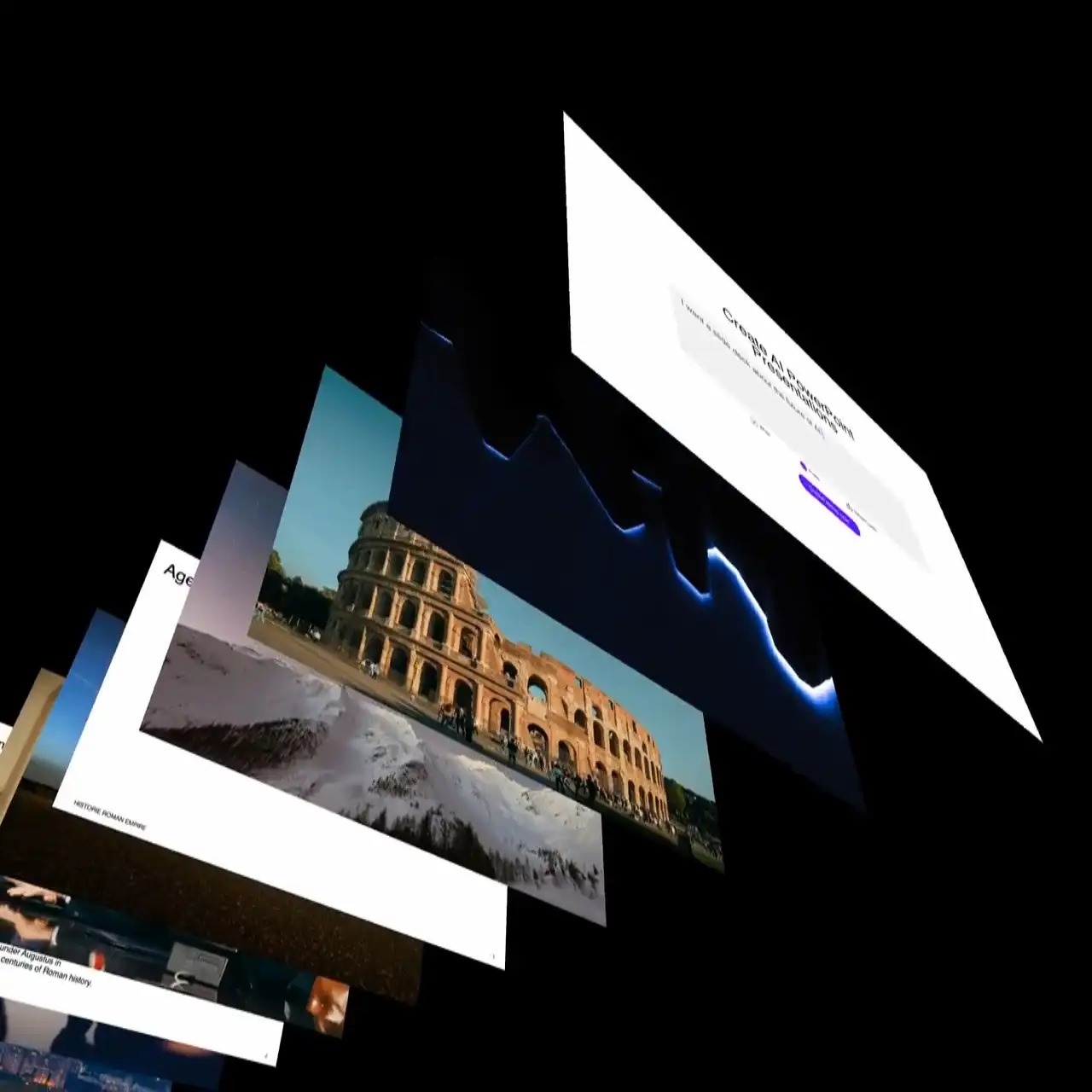
Go from prompt to a presentation-ready deck without the usual cleanup. SlidesGPT plans the outline first, generates slides with takeaway titles and short bullets, and exports clean to PowerPoint, Google Slides or PDF.
Get started